
Create a live poll to gather immediate student feedback by importing any video into WeVideo’s Interactivity space and adding a Poll interaction in the interactive designer.
Use this step-by-step guide to create a live poll using WeVideo’s interactive video tools.
|
In this article: |
Quick steps
- From WeVideo’s Interactivity space, click the three dots menu for any video and then Edit.
- Click + Create New Interaction button.
- In the Interaction type dropdown menu, select Poll.
- Customize your poll settings, including the question text, answer text, interaction timestamp, and screen placement.
- Open the Advanced menu to set additional parameters, such as whether the poll is required and how many learner attempts are allowed.
- Click Save to finish adding your poll.
Edit any video in the Interactivity space
Navigate to the Interactivity space, click the three dots menu for any video, and click Edit.
Create a new interaction
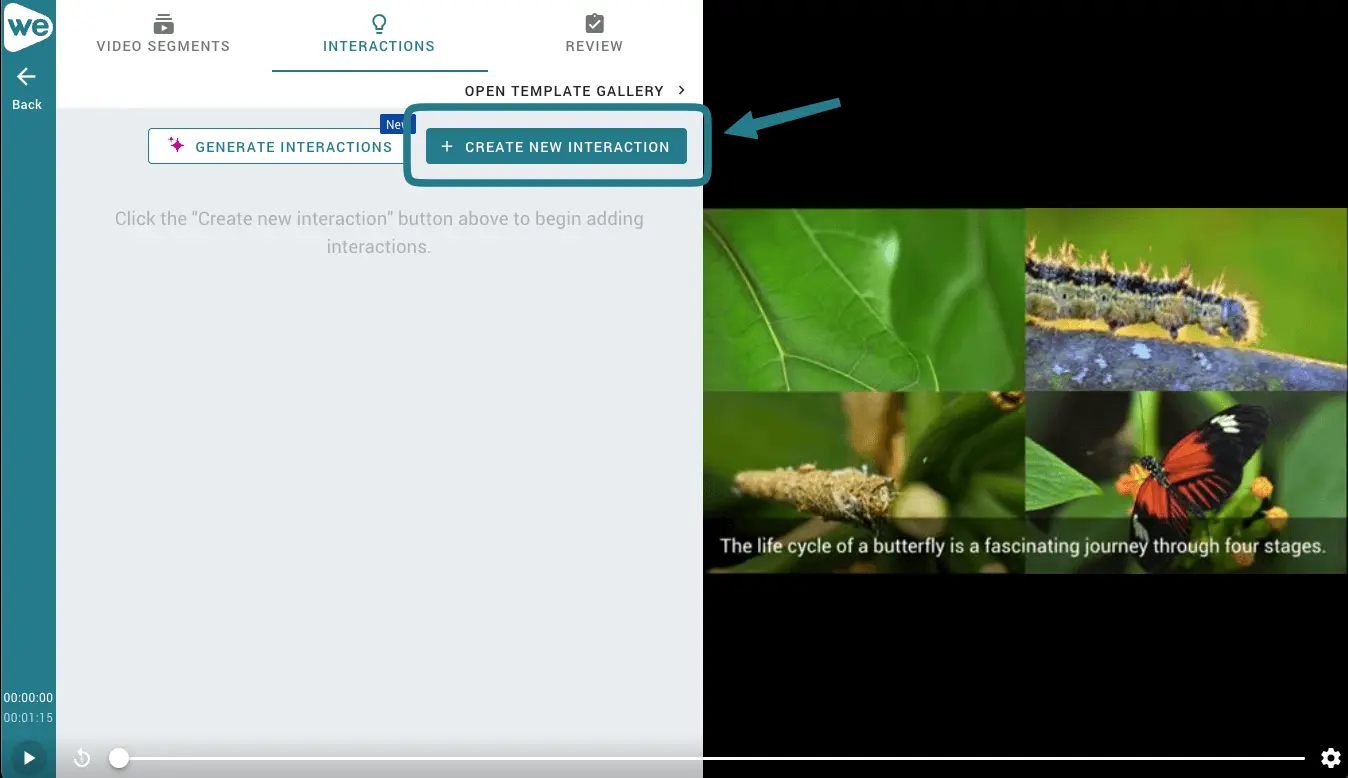
Click the button for + Create New Interaction.
Customize your poll settings
Choose Poll from the Interaction type dropdown menu.
Then customize the following settings:
- Interaction time: Add the timestamp at which the interaction should appear. (Optionally, click the three dots menu to also add an end time for the poll.)
- Placement: Choose from Sidebar, left side of video, or right side of video.
- Title: Type in the title of your poll.
- Answer: Type over the “Answer” placeholder text to write your poll response options. Click + Add Option to add more answer options, or hover and click the settings icon for any answer to add instructor feedback, add a jump to another point in the video, or delete the answer.
Optional: Customize advanced settings
Click the Advanced arrow to show and then enable or disable any additional settings for your poll.
The advanced settings determine whether:
- The poll is required
- The poll pauses video playback
- Learners can rewind
- The poll answers display in randomized order
- Multiple attempts are allowed (and how many)
- Learners can select multiple answers
You can also add the poll to a group of interactions by clicking the + button to the right of the trash can.
Click the Save button to finish adding your poll.
Plan requirements for live polls
To access the live poll feature, users must have an Instructor plan or be licensed under a customized Organization or Enterprise account that has video interactivity included.
Any learners licensed under an Instructor or Organization plan may also utilize live polls and other interaction types.
For more support and troubleshooting, visit our Help Center. New to WeVideo? Try for free or contact our team to learn more.